
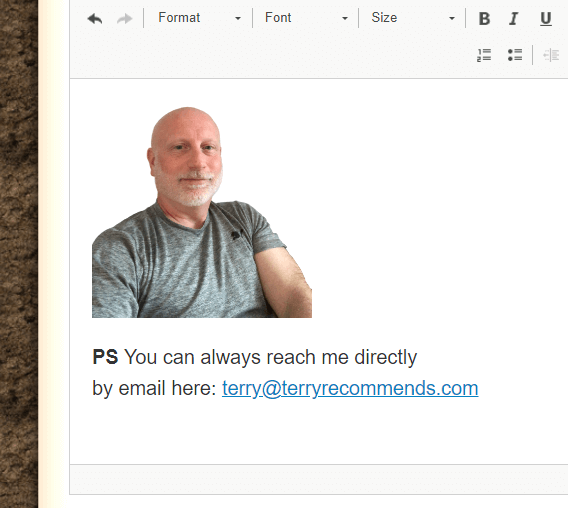
In my YouTube series, My Lead Gen Secret Tutorial, I show you how I add my photo and contact info to the bottom of the My Lead Gen Secret emails, so for those of you who want to do the same and help increase conversions, here you go…
Step 1
As shown in this video, go to imgbox.com and upload your photo in order to generate the code.
Step 2
Copy the HTML code below into your Google Sheet, Doc, Notepad, etc.
<p><img alt="" src="PASTE_YOUR_IMAGE_LINK_HERE" /></p> <p><strong>PS </strong>You can always reach me directly<br /> by email here: <a href="mailto:YOUR_EMAIL_HERE">YOUR_EMAIL_HERE_AGAIN</a></p> <p> </p>
Step 3
From the HTML code, take the URL from the IMG tag and paste it into the code where it says PASTE_YOUR_IMAGE_LINK_HERE. Leave the quotes.
Step 4
Now replace YOUR_EMAIL_HERE and YOUR_EMAIL_HERE_AGAIN with your email address.
Step 5
Test the code in My Lead Gen Secret as shown in the Day 34 tutorial to ensure it is working as expected.
That’s it. Save this code into your Google Sheet, or however you work best, as long as you have easy access to it every day. The code is now ready to be used in the Source of the email as I show you in the My Lead Gen Secret Tutorial series.
If you have any questions, please reach out to me and I’ll try to help.